Newsletter: August 2025
Areté has now debuted a number of enhancements and new features in our August release. Our new Shipment Visualizer: Overflow list enables Planners to schedule truck loads and easily accommodate any overflows. We also bring back the traditional Clipboard feature in Avail11 that provides Planners with the convenience and usability found in our legacy applications. Our smart processor function efficiently plans loads from Truck to Overflow, Overflow to Truck, Pallets from Overflow to Truck, and features the ability to edit all loads in a single screen.
Prevail11's Soft Adjustment feature has been improved to provide additional convenience through Excel™ Integration. Prevail11 now has the option to Export an Excel™ Outline Sheet and then enter a Difference amount or Soft Adjustment type/amount in the Sheet. Planners will simply import the Sheet into Prevail and all updated changes will be reflected instantly in the Prevail data.
Our New Shipment Visualizer Overflow List acts as your Clipboard
After generating Deployment Ship Loads in Avail11, you will use a new pane in the Shipment Visualizer named Overflow List that acts as your own personal clipboard used while truck scheduling. The Overflow List pane enables more detailed control over truckload scheduling, permitting items to be moved to and from the overflow list onto scheduled loads easily.
Planners simply right-click on the selected pallet/layer and then move one or more selected layers or pallets from a truck to the Overflow List.
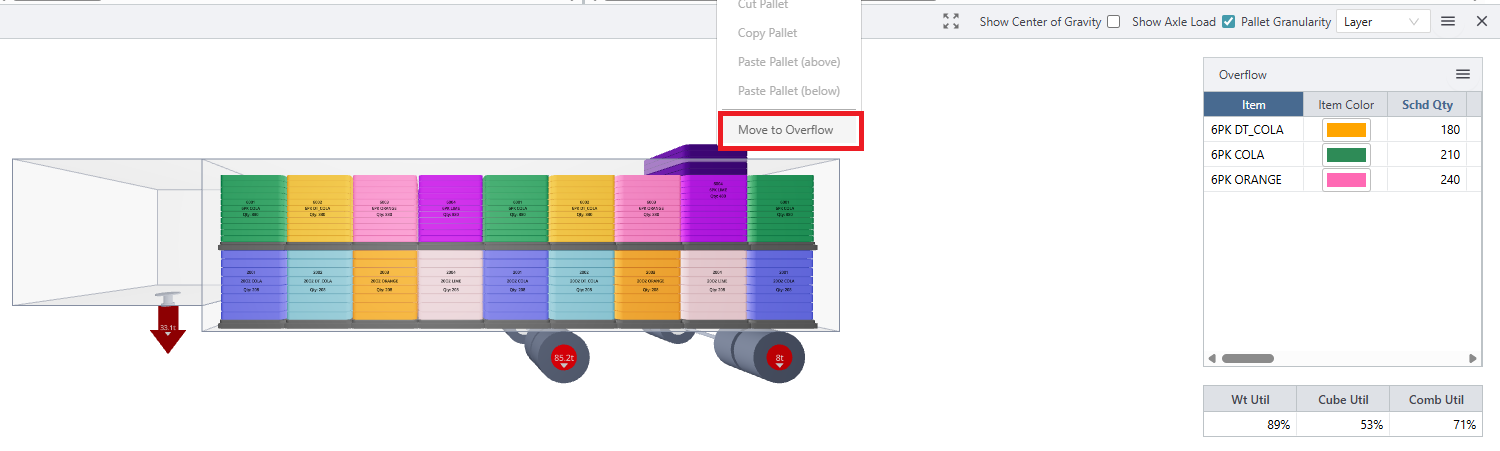
Example Truck Load with the Move to Overflow Option
To move items from the Overflow List, Planners right-click on the Overflow Row to access options to move any number of Layers and Pallets to a particular truck.
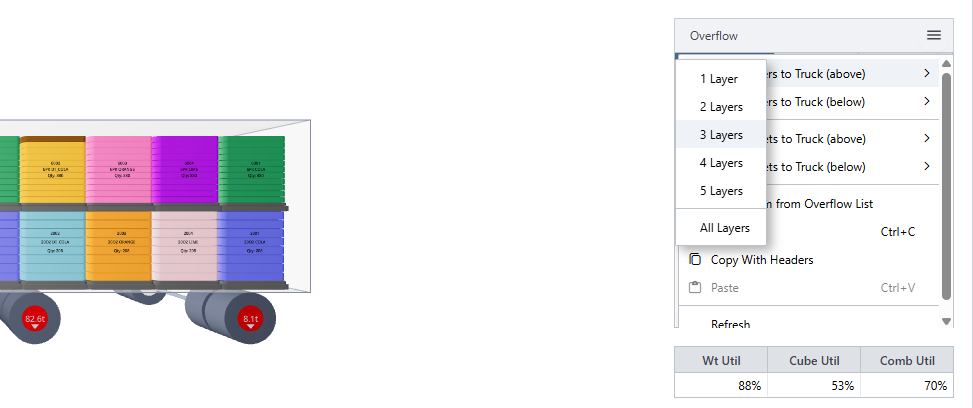
Example of 3 layers being moved from the Overflow list to the Truck
Pallets and Layers can be moved as needed on the truck and items in the Overflow List may be deleted or adjusted by right-clicking on a selected row. Additionally, all displayed items are color-coded so that they can be easily distinguished and selected. Avail11's sophisticated 3D Truck views coupled with the enhanced Shipment Visualizer allow for much better control of the Shipment Planning process.
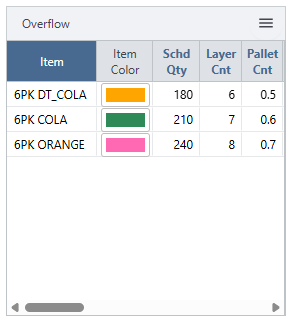
Example of an Overflow List
New Adjustment type in Prevail11: Differences
In our August release, introduce a new type of Demand Amount adjustment called Differences. The Difference Amount adjustment complements existing Soft Adjustments, enabling Planners to calculate and add the difference between forecasts and actuals. The Difference Amount functions are available in both History and Forecasts panels.
The Options for Difference Adjustment functions are as follows:
+: Target Field Value = Source Field Value + DiffAmt
-: Target Field Value = Source Field Value – DiffAmt
+%: Target Field Value = Source Field Value + DiffAmt/100 *Source Field Value
-%: Target Field Value = Source Field Value – DiffAmt/100 *Source Field Value
%: Target Field Value = Source Field Value * DiffAmt/100/=).
The soft Adjustment types are same as previously available (+, |, %, +%, Out, +Out or +/=) .
Easy Soft Adjustment and Differences Management through Excel
Prevail11's Soft Adjustments are a valuable set of features that allows Demand Planners to improve forecasts through a variety of adjustment types. In our latest release, we have added the ability to add and edit the full suite of Soft Adjustments inside the Export/Import Excel Outline tool. This new functionality allows for enhanced collaboration with your Demand Planning Team who will be able to use Soft Adjustments to improve forecasts in Excel™ sheets.
To use the new Soft Adjustment Export/Import functionality, Planners first export an Excel Outline with the Difference Amount and/or Soft Adjustment options selected as necessary for Prevail to create fields in the Excel Sheet.

Export Excel Outline Launch Form Settings
A Sheet will be generated with the required adjustment fields and then Planners can enter their required Difference or Soft Adjustment amounts in those Sheet columns. The Soft Adj Vol functions as in forecast editors when entering Soft Adjustment Volume there; the adjustment values are relative to the corresponding generated volume field. After entering all desired volume adjustments and changes, Planners simply import the saved edited Sheet using Prevail11's Import Excel Outline function.
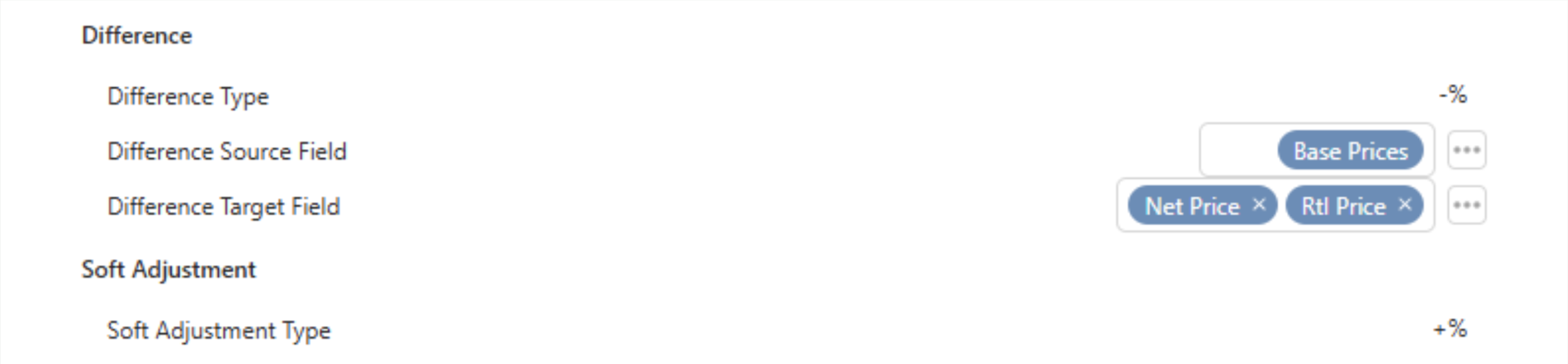
Import Excel Outline Launch Form Options
Contact us to learn more about all updates and enhancements in the latest version.
New Blog Posts to enhance your Supply Chain Planning

Challenges and Rewards of AlcBev Industry
The alcoholic beverage industry generates over $1.5 trillion in revenue annually. However, with high rewards comes a unique set of challenges.

WAPE vs MAPE for Forecast Accuracy Reporting
Many consider MAPE the best metric to calculate forecast accuracy, however WAPE is often the superior choice because it weights errors based on sales volume.
Check out more Blog Posts for Supply Chain Excellence Strategies →
About the Author

Shruti Natal
Business Development and Supply Chain Optimization Analyst
Shruti is a part of the implementation team (Prevail and Avail). She collaborates with clients to ensure a smooth working experience with Areté Inc.